

Microsoft has announced the removal of Excel and CSV import in Power BI through the classic experience of the service, a change that will affect users who still work with the old method from the Create page. If you use Power BI Desktop, these changes will not affect you.
Although Excel and CSV files will continue to be supported as data sources, it will be mandatory to use modern Power BI connectors to ensure that models are updated correctly from 2026 onwards.
If this change affects you, below are some quick alternatives and best practices to keep your reports running without having to start from scratch.
Which models will be affected by the removal of Excel and CSV import in Power BI?
Semantic models created with past experience have the following characteristics:
- They cannot be edited in the browser.
- They cannot be downloaded.
- They do not allow automatic updates (Scheduled Refresh).
If your model does allow online editing, downloading, or scheduled updates, you are already using modern connectors and do not need to make any changes.
Official withdrawal schedule
Microsoft has set the following key dates:
May 31, 2026
The creation of new models using the old experience will no longer be available.
July 31, 2026
Existing models will no longer be updated.
From that date:
- The reports will remain accessible.
- They will remain editable.
- However, the data will become obsolete, as it will not be synchronized with the original Excel or CSV file.
To keep the reports up to date, you will need to recreate them using Power BI's modern connectors, thereby avoiding the need to import Excel and CSV files into Power BI.
What alternative does Microsoft recommend?
Microsoft recommends using the current options for obtaining data from Excel and CSV files, available at:
- The Get Data page in the Power BI service.
- Power BI Desktop, where you can create complete and compatible semantic models.
These modern connectors enable online editing, downloading, and automatic updating, ensuring operational continuity and best modeling practices.
Where was the old option that will disappear?
The classic option appears at the bottom center of the Create page in the Power BI service. That experience will be completely removed before May 2026.
If your models were created using that option several years ago, it is advisable to review them as soon as possible.
How can you tell if your Power BI environment is at risk?
Many organizations are unaware that they are using outdated technology until they encounter update problems.
To check if your environment is affected by the removal of Excel and CSV import in Power BI, review the following:
- Do your models not allow automatic updates?
- Can't you edit them directly from the browser?
- Is it not possible to download them?
- Were they created from the Create page of the service several years ago?
If you meet any of these conditions, you are likely using the classic method and should plan your migration before July 2026.
What you should do now to avoid problems in 2026
To prepare for the removal of Excel and CSV import in Power BI:
- Identify whether you are using the old method.
- Analyze which reports depend on those models.
- Recreate the affected models with modern connectors.
- Verify that automatic updates are functioning correctly.
The sooner you plan for migration, the less impact it will have on operations.
Preventive review before 2026
The permanent withdrawal of the classic experience is not just a technical adjustment: it can directly affect financial, commercial, or management reports if not managed properly.
A preventive analysis allows:
- Detect models dependent on the old method.
- Assess the impact on strategic dashboards .
- Estimate the migration effort.
- Optimize the existing data architecture.
Anticipating the removal of Excel and CSV import in Power BI allows you to maintain operational continuity and take advantage of the transition to improve performance, governance, and data security.
Quick alternatives if you can no longer import Excel/CSV files
- Connect files from SharePoint or OneDrive (no local files).
- Use Dataflows to automate uploads and refreshes.
- Consider SQL Server or Azure SQL if you have recurring data sources.
- Avoid duplication: a single source for all reports.
Best practices for keeping your reports intact
- Centralize sources and avoid local files "on the desktop."
- Define a reusable template (not one per report).
- Set up scheduled updates.
- Check permissions and governance before adding more users.
Modernizing Power BI beyond technical change
These types of updates often highlight environments with legacy configurations or poorly optimized models.
Migrating to modern connectors can be an opportunity to:
- Review the quality of the data model.
- Reduce loading times.
- Implement good modeling practices.
- Improve security and access control.
As a partner specializing in Microsoft solutions and advanced analytics, we recommend approaching this transition in a structured manner rather than reactively.
The removal of Excel and CSV import in Power BI marks the end of the classic experience and will force many organizations to review their models before 2026.
Although reports will remain visible, their updating will be compromised if they are not migrated to modern connectors. Anticipating this will ensure continuity and optimize your data strategy without risk.
Frequently Asked Questions
The creation of new models with the classic experience will end on May 31, 2026, and existing models will no longer be updated on July 31, 2026.
Yes, reports will remain accessible and editable, but the data will not be updated if the model was created with the old experience.
You must migrate the affected models using modern Power BI connectors, either from the Get Data option in the service or from Power BI Desktop.
Direct import of local files is restricted. Connect from SharePoint/OneDrive or use Dataflows/databases.
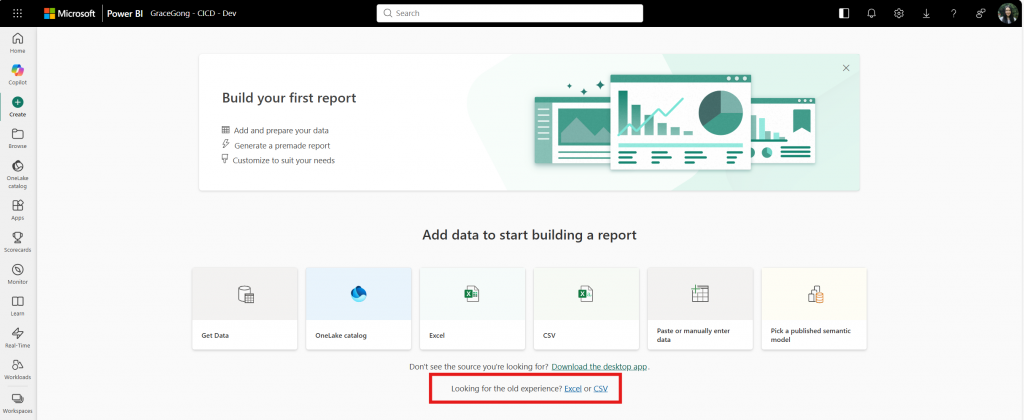
Image 1: Microsoft | Power BI. (2026). The legacy Excel and CSV import option is highlighted in red at the bottom center of the Create page in the Power BI service. Microsoft Power BI Blog